Teddy
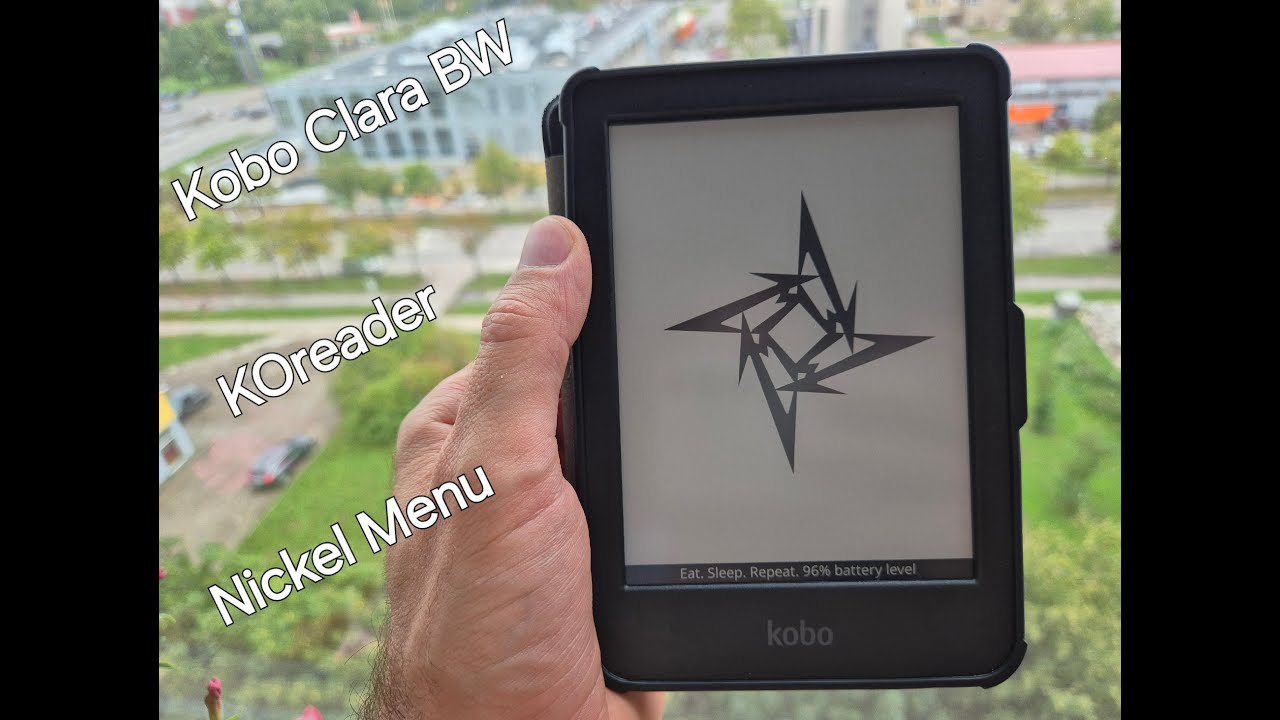
NickelMenu adds a small extra menu to Kobo e-readers. You need it to launch apps like KOReader, a powerful alternative reading app. Here is how we set both up on the Kobo Clara BW.
Steps
- Connect the Kobo to your computer and copy
KoboRoot.tgzinto the hidden.kobofolder. - Disconnect the cable and let the device reboot. NickelMenu now appears in the bottom right corner.
- Copy the
.addsfolder to the root of the device. Inside it you should have annmfolder and akoreaderfolder. - Use the files in the
nmfolder to configure NickelMenu, then open KOReader from the new menu.
KOReader works like a portable app: it lives in its folder and starts when you open it from NickelMenu. Get the latest files from the official NickelMenu and KOReader sites, and read their documentation before you experiment.